Auto Login
Automatically authenticate players when your game starts
Auto Login lets you skip the login screen for returning players by automatically authenticating them on game launch.
Setup
- Go to Project Settings → Game → EOS Integration Kit
- Set Auto Login Type to your preferred method
- Optionally set a Fallback method if the primary fails
Options
| Setting | Description |
|---|---|
| Auto Login Type | Primary login method (None, Device ID, Developer Tool, etc.) |
| Fallback Type | Backup method if primary fails |
| Use EAS | Whether to use Epic Account Services |
Make sure your chosen auto-login method doesn't require EAS if you have Use EAS disabled.
Developer Tool Auto Login
For testing, use the Developer Tool method to automatically log in with test accounts.
Setup Multiple Test Users
- Launch the DevTool from the toolbar:
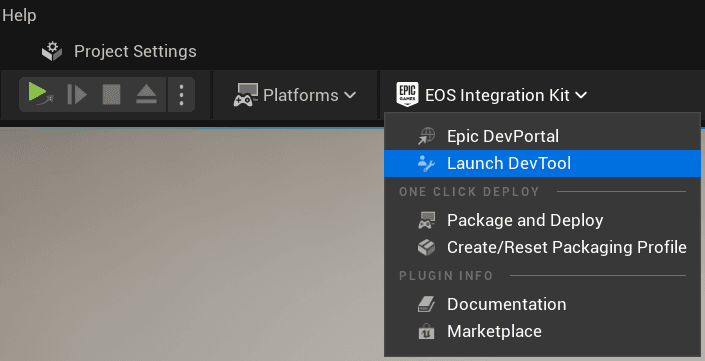
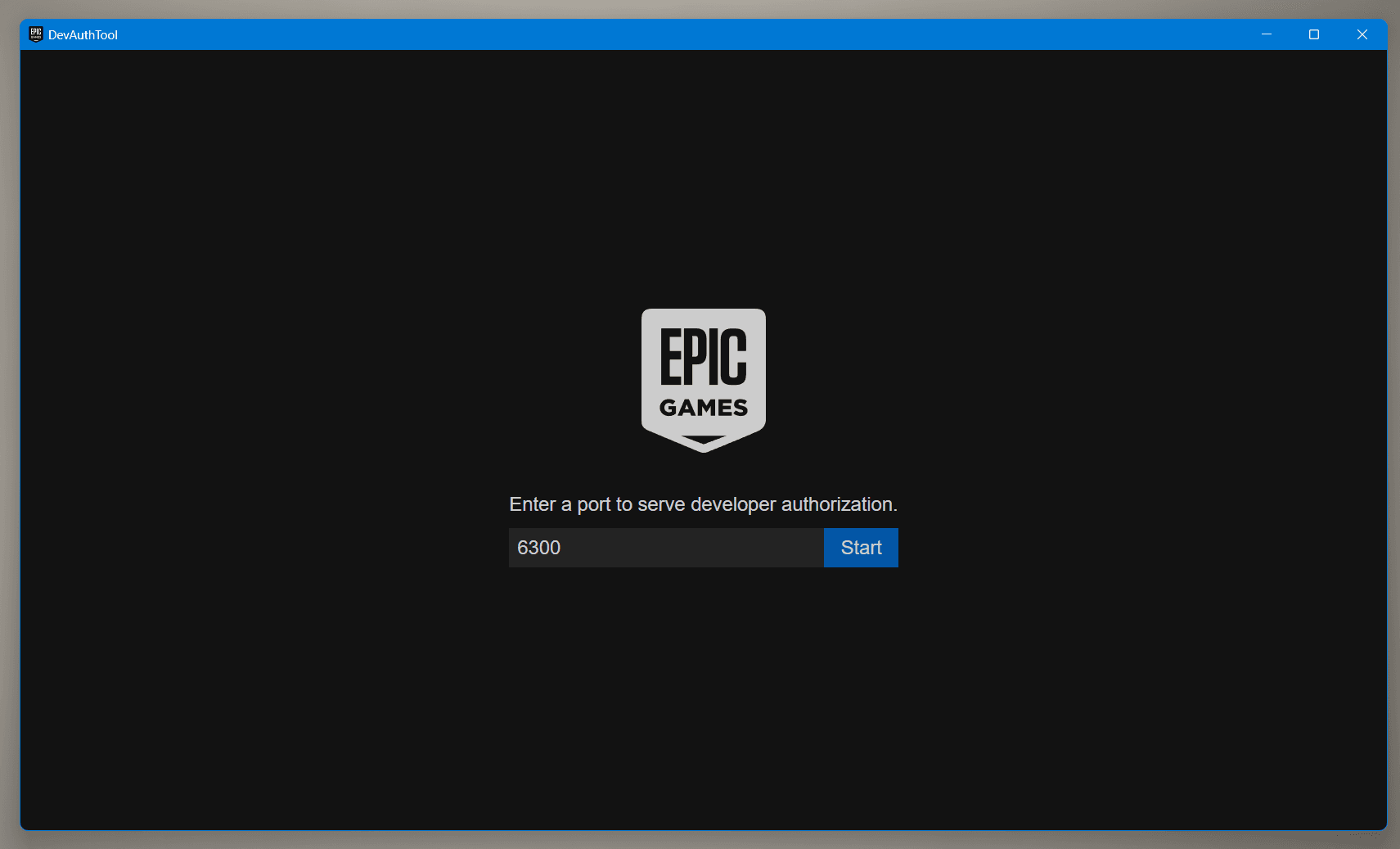
- Use port
6300(default) or change it in both DevTool and plugin settings:
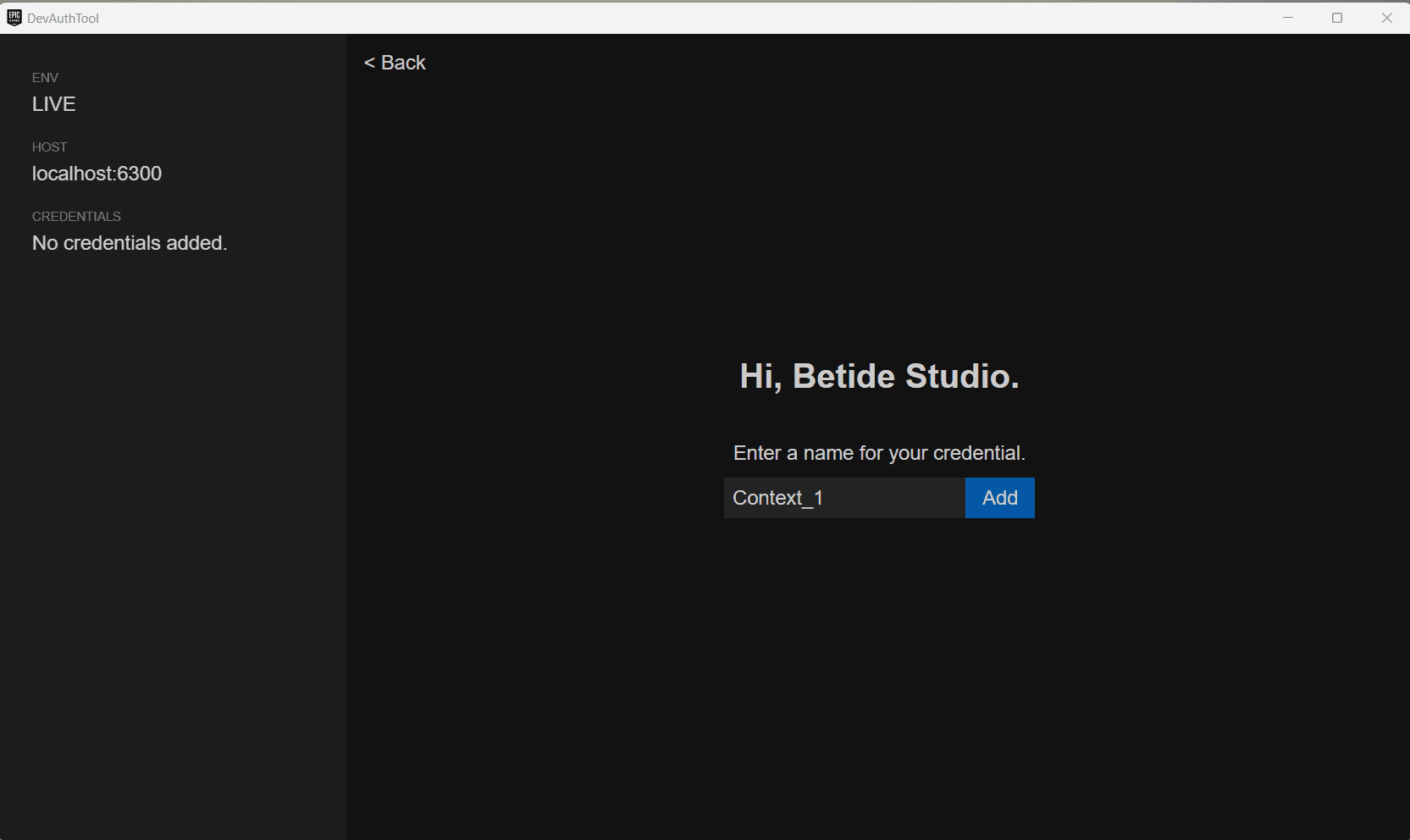
- Add contexts for each test user. Name them
Context_1,Context_2, etc:
- Launch multiple standalone instances - each will auto-login with a different user.
Developer Tool auto-login only works in editor standalone mode, not in packaged builds.
Common Use Cases
Persistent Auth (Remember Me)
For production games, use Persistent Auth to remember logged-in users:
- Set Auto Login Type to
Persistent Auth - On first login, the credentials are saved locally
- On subsequent launches, the user is automatically logged in
Device ID for Quick Testing
For rapid iteration during development:
- Set Auto Login Type to
Device ID - Set a default display name
- Every launch creates/uses the same anonymous account